vtterm: a terminal on a display
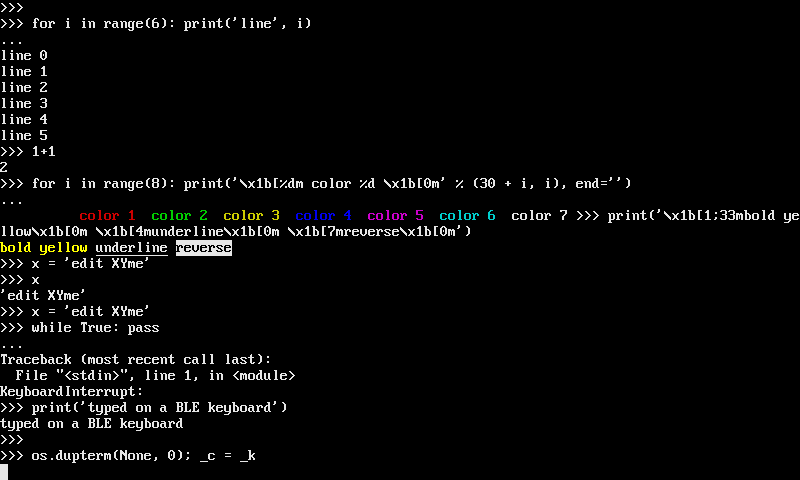
vtterm turns a display into a VT100 terminal with ANSI colors. Put the board’s own REPL on its screen and type on a USB or Bluetooth LE keyboard, or show another device’s session, on MicroPython-compatible boards, CircuitPython-compatible boards and CPython. It draws only the rows that change.
Install it
On a board, with mip:
import mip
mip.install("github:PyDevices/omnipython/packages/vtterm")
From a computer, mpremote mip install github:PyDevices/omnipython/packages/vtterm
does the same. On a CircuitPython-compatible board, copy the
packages/vtterm/vtterm
folder to CIRCUITPY/lib/.
vtterm draws its characters with pygraphics and takes its 256 colors from
palettes’ ANSI palette, palettes.ansi. OmniPython MP firmware has both built
in. If import palettes.ansi fails on your board, its firmware predates the
ANSI palette: update the firmware, since a built-in palettes wins over one
you copy to /lib.
On a desktop, install pygraphics from PyPI and put
packages/vtterm and packages/palettes/lib from a checkout of this
repository on the path:
pip install omnipython-pygraphics
PYTHONPATH=packages/vtterm:packages/palettes/lib python3 your_program.py
Your first terminal
A terminal is three parts: a Screen, the grid of characters with their
colors; a Parser, which reads the bytes a program sends and changes the
grid; and a renderer, which draws the grid on a display. This program uses
the first two, so it runs anywhere, with no display:
from vtterm import Parser, Screen
from vtterm.screen import BOLD

screen = Screen(cols=24, rows=4)
parser = Parser(screen)

# What a program sends: colored text, a new line, then a cursor move
# and an erase that rewrite part of the first row.
parser.feed(b"\x1b[1;32mready\x1b[0m >>> 1+1\r\n2\r\n")
parser.feed(b"\x1b[1;7H\x1b[K$ ls")

for line in screen.dump():
    print("|" + line + "|")
chars, fg, bg, flags = screen.lines[0]
print("first cell: color", fg[0], "bold", bool(flags[0] & BOLD))
print("cursor at row", screen.y, "column", screen.x)
|ready $ ls              |
|2                       |
|                        |
|                        |
first cell: color 2 bold True
cursor at row 0 column 10
\x1b[1;32m set bold green for “ready” and \x1b[0m set it back. Then
\x1b[1;7H moved the cursor to row 1, column 7 (escape codes count from 1),
and \x1b[K erased from there to the end of the row before $ ls was
written. Each row keeps four bytearrays: the characters, the foreground and
background colors as ANSI palette indices, and the style flags.
Escape codes lists every sequence the
parser understands.
Terminal puts a screen, a parser and a renderer together, sized to a
display. On a board with board_config:
from board_config import display_drv
from vtterm import Terminal

term = Terminal(display_drv)
term.write(b"\x1b[1;32mready\x1b[0m >>> 1+1\r\n2\r\n")
Terminal(display, font_height=8) fits twice as many rows as the default
16-pixel font, and 14 is in between. The font is 8 pixels wide at every
height. Pass cols and rows to use part of the display.
Show the REPL on a display
A Console is a stream for os.dupterm: what the REPL prints is drawn on
the display, and what you push into it reaches the REPL as typed input. The
REPL over USB or serial keeps working beside it.
from board_config import display_drv
from vtterm import Terminal
from vtterm.console import Console

console = Console(Terminal(display_drv))
console.attach()
console.push(b"1+1\r")
From attach on, everything the REPL prints appears on the display too, and
push types into it. examples/vtterm_simpletest.py
is this program with a greeting. Run it instead of Home or an LVGL app, since
both would draw on the same display.
The console draws when the REPL writes or asks for input. A program that
prints from a timer, or a long loop, draws only when output arrives, so call
console.refresh() from a timer to show what’s waiting:
import multimer

timer = multimer.Timer()
timer.init(mode=multimer.Timer.PERIODIC, period=20, callback=lambda t: console.refresh())
Ctrl-C pushed from a timer stops a running program, as it does over USB, even
a while True: pass.
An ESP32 has one dupterm slot, and WebREPL takes it while a client is
connected. attach raises OSError when another stream holds the slot,
rather than pushing it out. Try again later, from a timer, and the console
takes the slot once the client leaves. detach gives it back.
On ESP32 firmware other than OmniPython MP, detach() the console before a
soft reset (Ctrl-D), or the board may crash;
how it works
says why.
CircuitPython has no os.dupterm, so there vtterm can show a
session with another device but not the
board’s own REPL.
Scroll back and use the alternate screen
A terminal keeps the rows that scroll off the top, up to a budget in bytes you
set with Terminal(display, scrollback=...) (16 KB by default, about 100 rows
of 40 columns; 0 keeps none). terminal.scroll_back(10) shows ten rows
back, terminal.scroll_back(-10) comes forward, and Shift+Page Up and Shift+Page
Down page through it on a keyboard. New output brings the view back to the live
screen.
Programs that ask for the alternate screen (ESC [ ? 1049 h, or ?47 and
?1047) get a blank grid, and the prompt comes back as it was, cursor
included, when they leave. The alternate screen has no scrollback.
Draw boxes and tables
Programs draw boxes with the DEC line-drawing set: after ESC ( 0, the
letters j to x are corners, tees, a cross and lines, until ESC ( B
brings the letters back. vtterm draws them as lines through the middle of each
cell, so they join from cell to cell at any font height.
terminal.write(b"\x1b(0lqqqqwqqqqk\x1b(B\r\n")
terminal.write(b"\x1b(0x\x1b(B on \x1b(0x\x1b(B 21 \x1b(0x\x1b(B\r\n")
terminal.write(b"\x1b(0mqqqqvqqqqj\x1b(B\r\n")
print(terminal.screen.text(1))
The display shows a box with two cells, and the last line prints its middle row:
│ on │ 21 │
The box-drawing characters of UTF-8 (┌, ─, ┼ and the rest) draw the same
lines; heavy, double and rounded ones are drawn as single lines with square
corners. Escape codes
lists every character of the set.
Type on a keyboard
vtterm.keyboards reads a USB keyboard on the board’s host port and a BLE
keyboard, each found on its own and found again after it’s unplugged or
switched off. vtterm.keys.key_bytes turns each key press into the bytes a
VT100 sends; Keys lists them.
from vtterm.keyboards import start_all
from vtterm.keys import key_bytes

KEYDOWN = 0x300  # events.KEYDOWN

sources, missing = start_all()
print([source.status for source in sources], missing)
start_all starts every source the firmware has. missing says why any
couldn’t start, such as “BLE: not in this firmware”. Each source’s status
is a line you can show: “USB: PIXART HP Wireless Keyboard and Mouse”, or
“BLE: looking for a keyboard”.
poll() never waits. Call it often, from a timer, and push what it returns
into the console:
def tick(_timer):
    typed = b""
    for source in sources:
        for event in source.poll():
            if event.type == KEYDOWN:
                typed += key_bytes(event.key, event.mod, console.terminal.screen.app_cursor) or b""
    if typed:
        console.push(typed)
    console.refresh()
Passing app_cursor lets a full-screen program that asks for application
cursor keys get the arrow sequences it expects.
A USB keyboard needs a board with a USB host port and firmware with the
usb.host package. Starting the host takes the port, so a board whose REPL
is on that same port loses it until close(). A keyboard and mouse combo’s
dongle works; its keyboard is read in boot protocol. A BLE keyboard needs
firmware with Bluetooth and the bledev package; the source connects to the
first keyboard it finds advertising the HID service. Call close() on every
source when you’re done, to give the host port and the radio back.
On a desktop, a display’s events are key events already. vtterm.keys.KeyEvents
reads them and returns the bytes, and a Console polls it whenever the REPL
looks for input:
from vtterm.keys import KeyEvents

console = Console(term, KeyEvents(display_drv.get_events, term.screen))
Letters and symbols follow a US layout.
Send touches and clicks to a program
A full-screen program can ask the terminal where it was clicked, with
ESC [ ? 1000 h and its relatives. vtterm.mouse.Mouse makes the reports a
program expects from a display’s touch and mouse events, and returns None
until a program has asked, so you can feed it every event.
On a desktop, give one to KeyEvents and clicks, drags and the wheel go to the
program with the keys:
from vtterm.keys import KeyEvents
from vtterm.mouse import Mouse

keys = KeyEvents(display_drv.get_events, term.screen, mouse=Mouse(term))
console = Console(term, keys)
On a board, a touchscreen’s events are mouse events with the left button, so
a touch is a click and a slide is a drag. Pass each one to mouse.event and
send what it returns the way you send keys:
mouse = Mouse(term)

report = mouse.event(event)
if report:
    console.push(report)
With a touch driver that returns points instead, call
mouse.touch(x, y, down) with each reading. If the terminal doesn’t start at
the top left of the panel, give Mouse its corner: Mouse(term, x=0, y=40).
A program asks for presses and releases (?1000), drags too (?1002) or all
movement (?1003), and for the SGR form of the reports (?1006);
Escape codes has the bytes
of each.
The REPL app
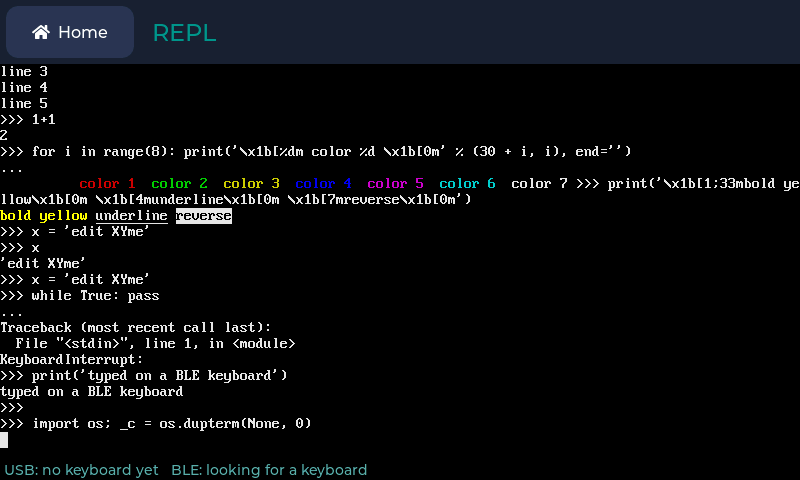
On a board that runs Home, the REPL app in the
apps repository
puts the board’s Python prompt in an app beside the others, with a status
line underneath that says which keyboards it found. Install vtterm, copy the
app’s folder to the board’s /apps, and it appears as REPL on Home’s Desk
page after the next reset.
Opening the app ends the program’s main loop, as Ctrl-C would, so the REPL can run; timers keep going. Going back to Home gives the dupterm slot back and closes the keyboards. While a WebREPL client is connected, the status line says so and the app waits for it to leave, and WebREPL can’t connect while the app is open: reach the board over its serial port, or go back to Home first.
Connect to another device
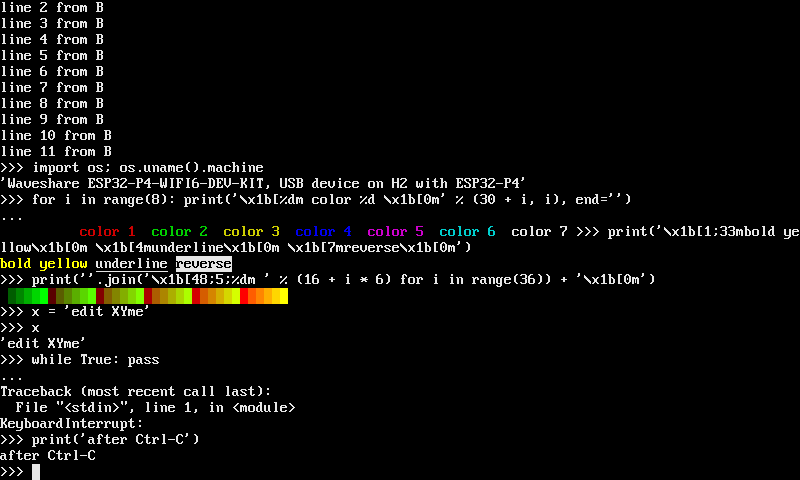
vtterm.session.run makes a display the terminal for another device’s
console: another board’s REPL over Bluetooth LE, a UART, or a TCP socket.
What the device sends is drawn, and key presses go back to it. A link is
anything with async read(n) and write(data), such as a bledev.nus.Link
or an asyncio stream.
import asyncio

import bledev.auto
import bledev.repl
from board_config import display_drv
from vtterm import Terminal
from vtterm.session import run


async def main():
    term = Terminal(display_drv)
    ble = bledev.auto.adapter()
    link = await bledev.repl.connect(ble, "your password", name="mpy-repl")
    await run(term, link, keys)
    await link.close()


asyncio.run(main())
The other board runs bledev.repl.start(name="mpy-repl"). keys is any
object whose read() returns the bytes typed since the last call, or None.
run returns when the link closes, or when an asyncio.Event you pass as
stop is set. On MicroPython, bledev.repl.connect stops at the password
prompt (#553).
When the other side asks where the cursor is (ESC [ 6 n) or what the
terminal is (ESC [ c), run sends the answer down the link, so
full-screen programs that ask before they draw work without anything from
you.